Settings & Members
Settings & Members
The Settings page is where workspace administrators manage membership and configuration. What you see depends on your role.
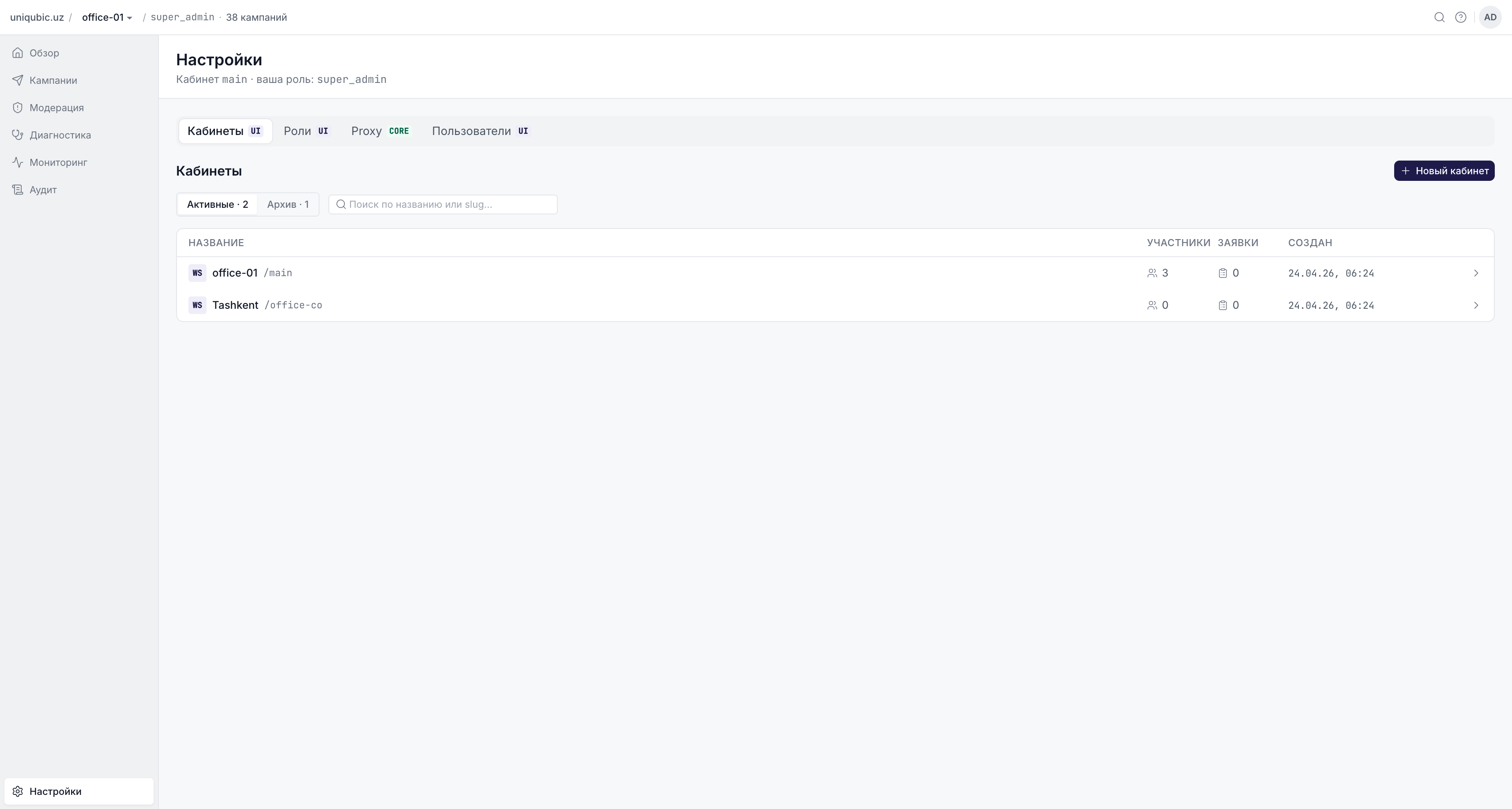
Settings Tabs by Role
Workspace Admin (Admin role)
| Tab | What it contains |
|---|---|
| Workspace | Workspace display name and slug; danger zone (archive workspace) |
| Members | Invite, remove, and manage member roles |
| Roles | View effective permissions for each role in this workspace |
Super Admin
Super Admins see a global settings view with four tabs:
| Tab | What it contains |
|---|---|
| Workspaces | All workspaces system-wide: create, archive |
| Roles | System-wide role overview |
| Proxy | ESME rate limiters, saddr presets, strategy presets — shared across all workspaces |
| Users | All users in the system: block, restore, reset password, manage memberships |
Managing Members
Inviting a member
- Go to Settings → Members.
- Click Invite Member.
- Enter the user's email address and select their role (Author, Moderator, Admin).
- Click Send Invitation.
The user receives an email invitation. They must click the link to accept and join the workspace. Pending invitations are shown in the Members list with an "Invited" badge. You can revoke a pending invitation at any time.
Requires Admin role or above.
Join Requests
Users can also request to join a workspace directly (if the workspace allows it). Pending join requests appear in the Members section. Admins can Approve or Reject each request.
Changing a Member's Role
- In the Members list, click the member row or the Edit icon.
- Select the new role from the dropdown: Author, Moderator, or Admin.
- Save changes.
You cannot change the role of another Super Admin or demote yourself.
The is_moderator Flag (for Authors)
When a member has role Author, an additional checkbox appears: + Moderator. Enabling it grants the author moderator-level permissions (approve/reject campaigns and sender revisions) in addition to their author capabilities — without changing their role to Moderator.
This is useful when someone needs to both create campaigns and moderate others' campaigns in the same workspace.
This flag is ignored for Moderators and Admins (they already have the relevant permissions).
Removing a Member
- In the Members list, click the ⋯ menu for the member.
- Select Remove Member.
- Confirm: "The member will lose access to this workspace."
The user loses all access to this workspace immediately. Their historical campaigns and audit records are preserved.
Workspace Settings
Admins can update the workspace display name in the Workspace tab. The slug (URL identifier) is set at creation and cannot be changed.
Proxy Settings (Super Admin)
The Proxy tab in Super Admin settings manages system-wide SMS gateway configuration:
| Section | Purpose |
|---|---|
| ESME / Rate Limiters | Configure SMS gateway channels with name, ESME ID, and RPS (requests per second) limit |
| Saddr Presets | Global sender address presets available to all workspaces |
| Strategy Presets | Routing strategy rules for each ESME channel |
These settings affect the campaign wizard — only active ESME channels appear in the wizard's channel dropdown, and only active strategies appear in the strategy step.
User Management (Super Admin)
The Users tab shows all users in the system. Super Admins can:
| Action | Effect |
|---|---|
| Block user | User cannot sign in; shown with a blocked badge |
| Restore user | Unblocks the account |
| Reset password | Sends a password reset (or shows the new password) |
| View memberships | See all workspaces the user belongs to, with their role in each |
Next Steps
- Roles & Permissions — understand what each role can do
- Moderation — set the is_moderator flag for an author