Sender Names & Revisions
Sender Names & Revisions
A Sender Name is the name or number that recipients see as the sender of your SMS messages — for example MyShop, BankAlert, or +998901234567. Before a sender name can be used in a campaign it must have an approved revision.
How Sender Names Work
Sender names are immutable by design: you cannot edit an existing sender. Every change (updating the saddr value or SMPP parameters) creates a new revision that goes through a separate approval workflow.
This design creates an audit trail of all sender name changes, ensuring compliance in regulated markets.
Sender Name (logical entity)
└── Revision 1 (saddr=OldName) — Approved ← current
└── Revision 2 (saddr=NewName) — Pending Approval
└── Revision 3 (saddr=NewName v2) — Rejected
Senders List
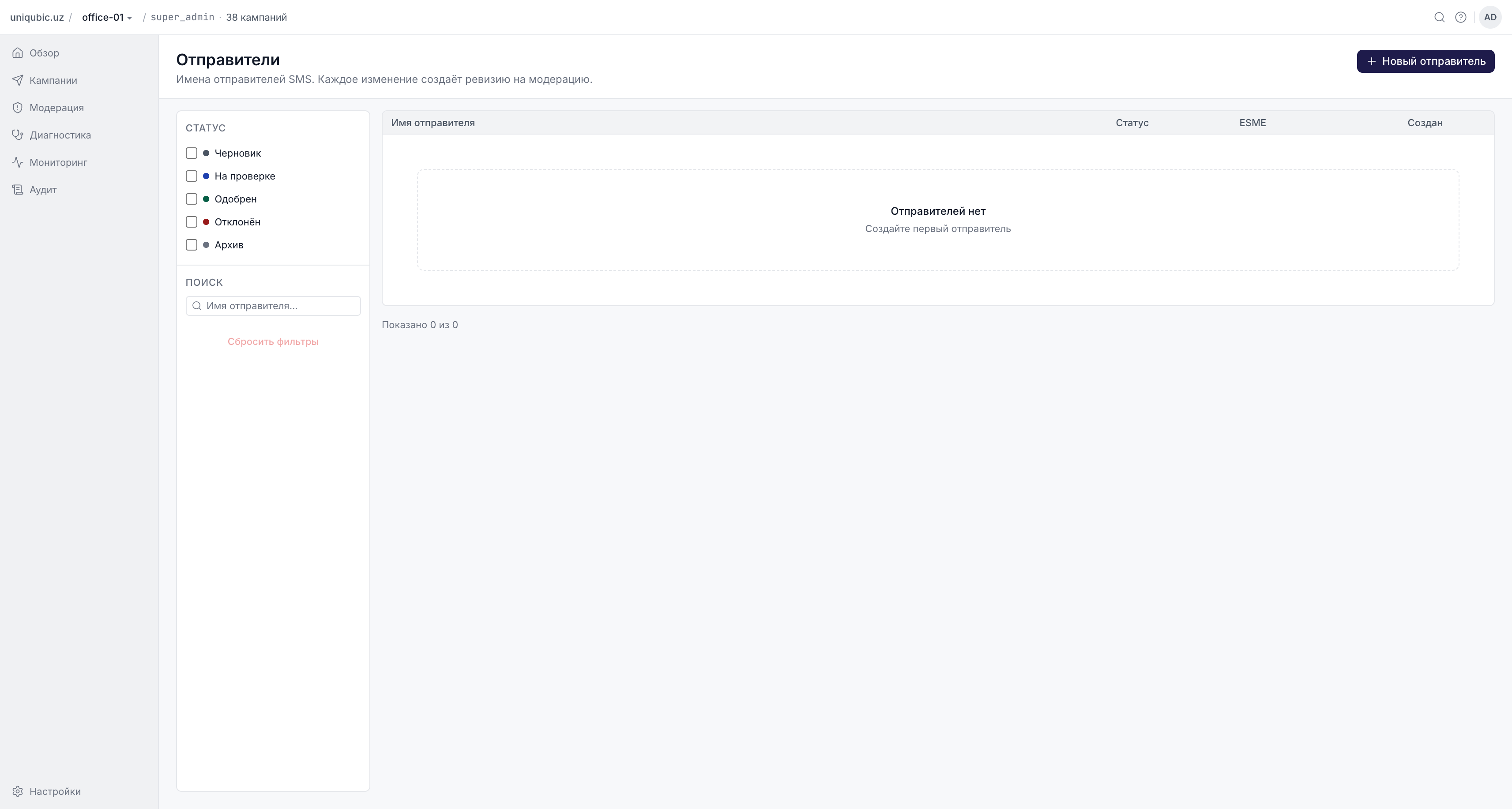
Creating a Sender Name
- Go to Senders in the sidebar.
- Click New Sender (top-right button). Requires Admin role or above.
- Enter a display name (internal label used in the UI) and the saddr (the value sent to the operator).
- Set the SMPP parameters: ston, snpi, dton, dnpi (default: 1, 5, 1, 1 — check with your operator).
- Optionally enter a reason (explains to the moderator why this sender is needed).
- Click Submit for review.
The sender is created with status Pending Approval and a first revision.
Sender Statuses
| Status | Description |
|---|---|
| Draft | Sender created but no revision submitted yet |
| Pending Approval | Has a revision awaiting moderator review |
| Approved | Current revision is approved — can be used in campaigns |
| Rejected | Latest revision was rejected — cannot be used until a new revision is approved |
| Archived | Sender is deactivated and hidden from the campaign wizard |
Creating a New Revision
To change an approved sender's saddr or SMPP parameters:
- Open the sender from the Senders list.
- Go to the Revisions tab.
- Click New Revision.
- Enter the new saddr and/or SMPP values and a reason for the change.
- Click Submit for review.
The new revision enters the moderation queue. Until it is approved, the previous approved revision remains active — campaigns can still use the sender with the old parameters.
Who Can Do What
| Action | Author | Author + is_moderator | Moderator | Admin | Super Admin |
|---|---|---|---|---|---|
| View senders | ✓ | ✓ | ✓ | ✓ | ✓ |
| Create sender | ✗ | ✗ | ✗ | ✓ | ✓ |
| Archive sender | ✗ | ✗ | ✗ | ✓ | ✓ |
| Create revision | ✓ | ✓ | ✓ | ✓ | ✓ |
| Submit revision | ✓ | ✓ | ✓ | ✓ | ✓ |
| Approve/Reject revision | ✗ | ✓ | ✓ | ✓ | ✓ |
Archiving a Sender
Admins can archive a sender from the sender detail page. Archived senders:
- Are hidden from the campaign wizard dropdown
- Remain visible in the Senders list with an
archivedbadge - Cannot be used in new campaigns
Archiving a sender does not cancel any in-progress campaigns that were already using it.
Senders in the Campaign Wizard
When creating a campaign, the Sender dropdown in Step 2 shows only senders with an approved revision. If a sender you expect to see is missing, check:
- The sender's current revision has status Approved (not Pending or Rejected)
- The sender belongs to the same workspace as the campaign being created
- The sender is not archived
Next Steps
- Creating a Campaign — use a sender name in the campaign wizard
- Moderation — approve or reject sender revisions