Moderation
Moderation
Every campaign in Message Center must be reviewed by a moderator before it starts. No campaign is ever sent automatically — this is by design to prevent accidental mass sends.
The Moderation page is accessible to all workspace members in the sidebar, but only users with moderator permissions can take action.
Who Can Moderate
| Role | Campaign moderation | Sender revision moderation |
|---|---|---|
| Author | ✗ | ✗ |
| Author + is_moderator flag | ✓ (approve / reject) | ✓ (approve / reject) |
| Moderator | ✓ (approve / reject) | ✓ (approve / reject) |
| Admin | ✓ (approve / reject) | ✓ (approve / reject) |
| Super Admin | ✓ + delete | ✓ |
The
is_moderatorflag on an Author membership grants moderator-level permissions in addition to author permissions. This is set by a workspace admin in Settings → Members.
The Moderation Queue
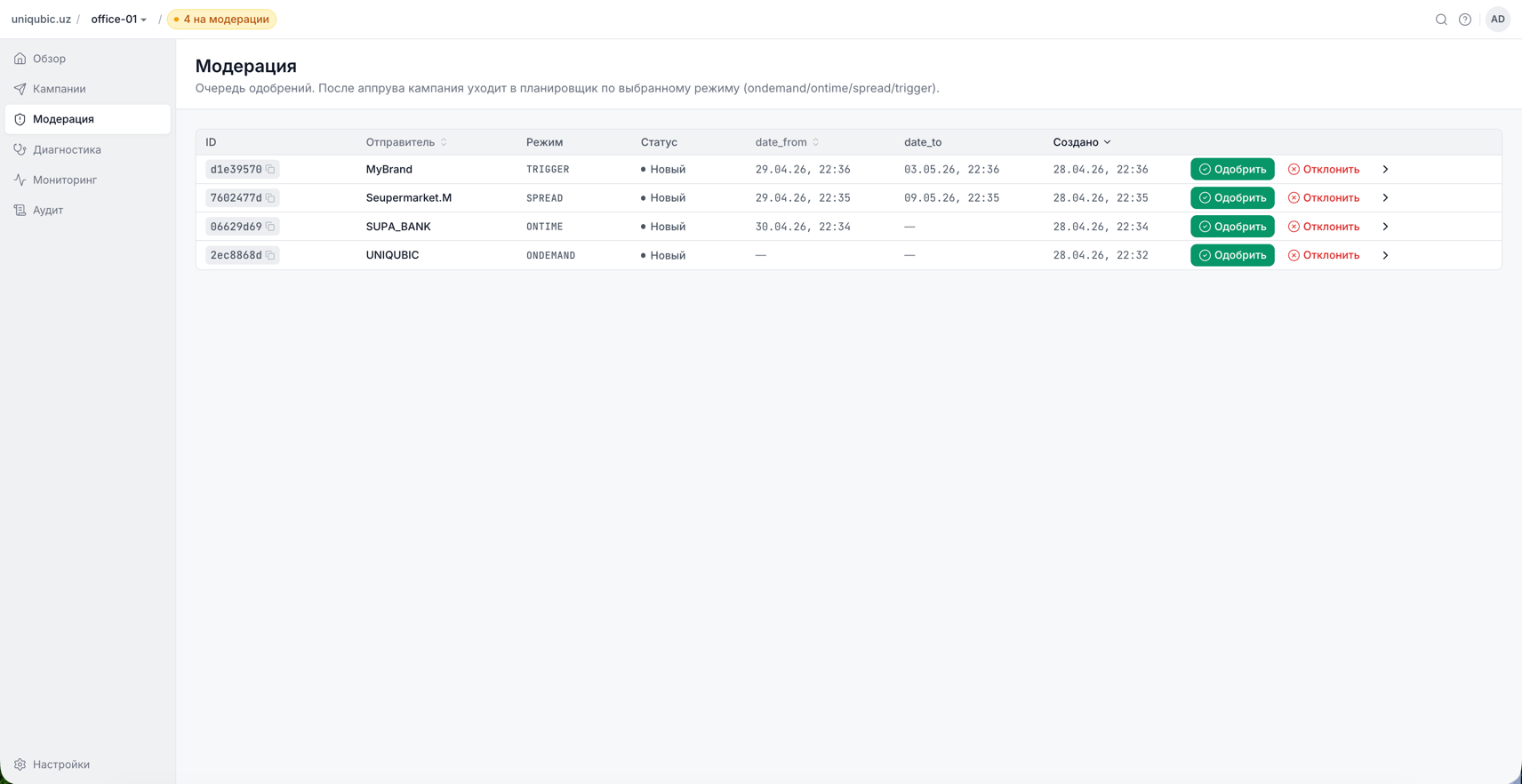
The Moderation page has two tabs:
Campaigns tab
Shows all campaigns with status New (pending approval). For each row you can see:
- Campaign ID (UUID)
- Workspace (when viewing from Master)
- Mode (OnDemand, OnTime, Spread, Trigger)
- Sender name (saddr)
- Scheduled date/time
- Created date and author
Click a row to open the Campaign Detail page where you can review the full campaign parameters before deciding.
Sender Revisions tab
Shows all sender name revisions with status Pending Approval. For each row you can see:
- Sender name
- Revision number
- saddr (the actual alphanumeric sender ID)
- Reason for revision (optional)
- Created date
Approving a Campaign
Quick approval from the list
Each campaign row has inline Accept and Reject buttons. Use these for fast decisions when you have already reviewed the parameters.
Approval from the detail page
- Click the campaign row to open the detail page.
- When status is New, the Moderation Actions Bar appears at the top (instead of the normal job actions bar).
- Review all tabs — especially Parameters and Recipients count.
- Click Accept to approve. The campaign transitions to
Building→Pending→Sendingbased on its mode and schedule.
If you approve and then immediately see "Decision already made by another moderator", another moderator acted concurrently. The campaign has already been decided — no further action needed.
Rejecting a Campaign
- Click Reject (from the list or detail page).
- A confirmation dialog appears: "This campaign will be cancelled without being sent."
- Click Reject to confirm.
The campaign status changes to Cancelled and the campaign moves out of the moderation queue. The author can see the status in their campaigns list.
You can optionally add moderator notes before rejecting — these are visible to the author in the campaign detail's Audit tab and in the detail overview panel.
Deleting a Campaign (Super Admin only)
Super Admins have an additional Delete option in the moderation actions bar. This performs a best-effort cancel on core and permanently removes the campaign from the workspace.
Use this when a campaign was submitted by mistake or contains invalid data that should not even remain as a cancelled record.
Approving a Sender Revision
- Click a revision row in the Sender Revisions tab.
- You are taken to the sender detail page — Revisions sub-tab.
- Review the proposed saddr, ston, snpi values and the reason provided.
- Click Approve (with optional notes) or Reject.
Approving a revision sets it as the current revision of the sender and promotes the sender status to approved. The new saddr becomes available in the campaign wizard.
Conflict Avoidance
The moderation queue is polled in real-time (every few seconds). If two moderators have the same campaign open simultaneously:
- The one who acts first completes the action.
- The second moderator sees the message "Decision already made by another moderator".
- No double-approval or double-rejection is possible.
Next Steps
- Sender Names & Revisions — understand the sender revision workflow
- Roles & Permissions — review who can do what