Creating a Campaign
Creating a Campaign
To create a campaign go to Campaigns in the left sidebar and click New Campaign (top-right). A 5-step wizard guides you through the setup. The campaign will not start automatically — it goes into the moderation queue first.
Prerequisite: at least one sender name with status Approved must exist in your workspace.
Step 1 — Mode
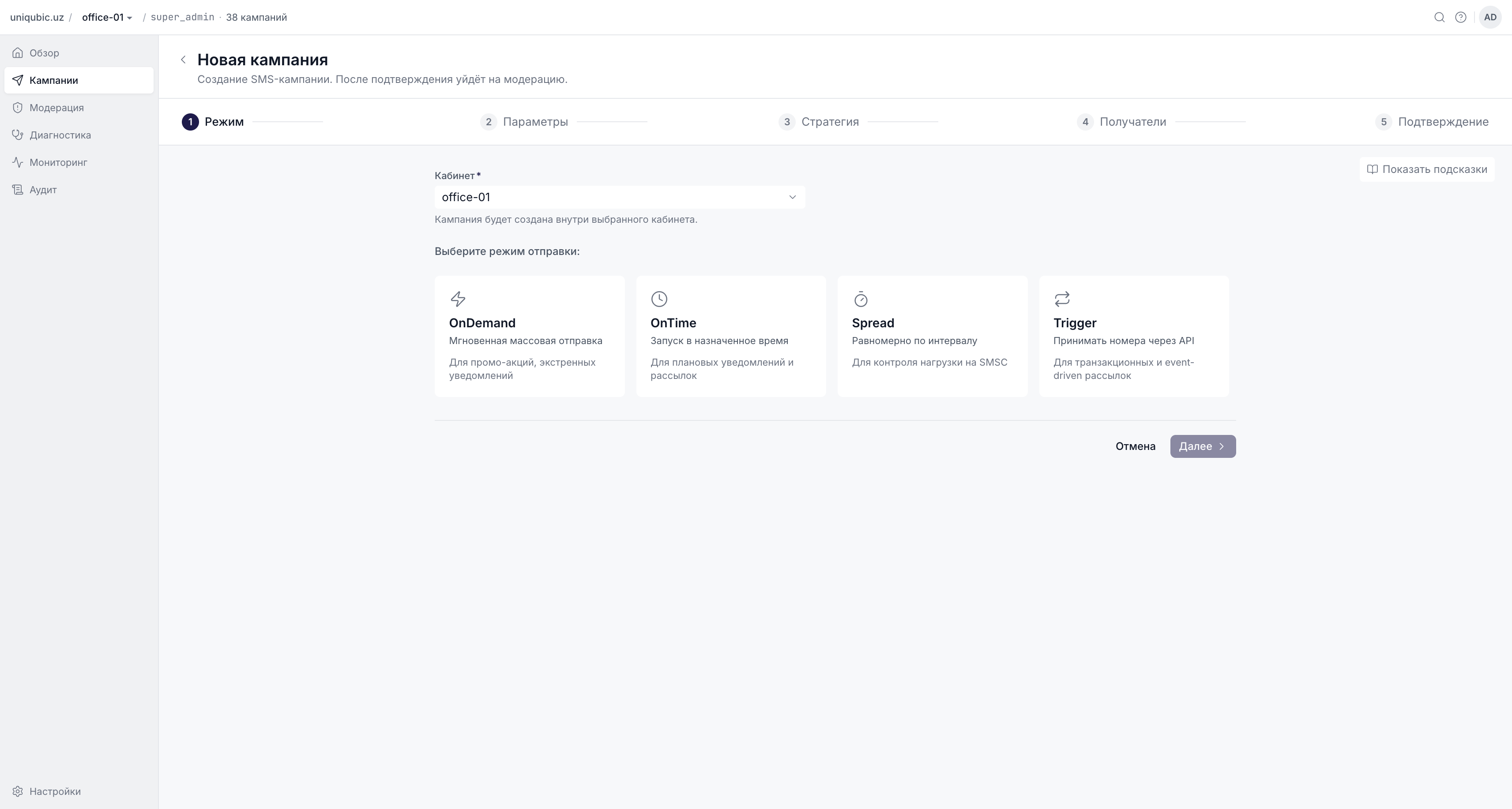
Choose the workspace (cabinet) that will own this campaign and the send mode:
| Mode | Icon | Use case |
|---|---|---|
| OnDemand | ⚡ | Send to all recipients immediately. Best for promotions and urgent alerts. |
| OnTime | 🕐 | Schedule the send for a specific date and time. |
| Spread | ⏱ | Distribute messages evenly across a date range. Each day at the scheduled time a portion of the list is sent — no recipient receives more than one message. |
| Trigger | 🔁 | Recipients are pushed via API one at a time (e.g. OTP, order confirmations). The Recipients upload step is skipped. |
Super Admins can select a different workspace than the one currently active in the URL. Other roles always create campaigns in their current workspace.
Step 2 — Parameters
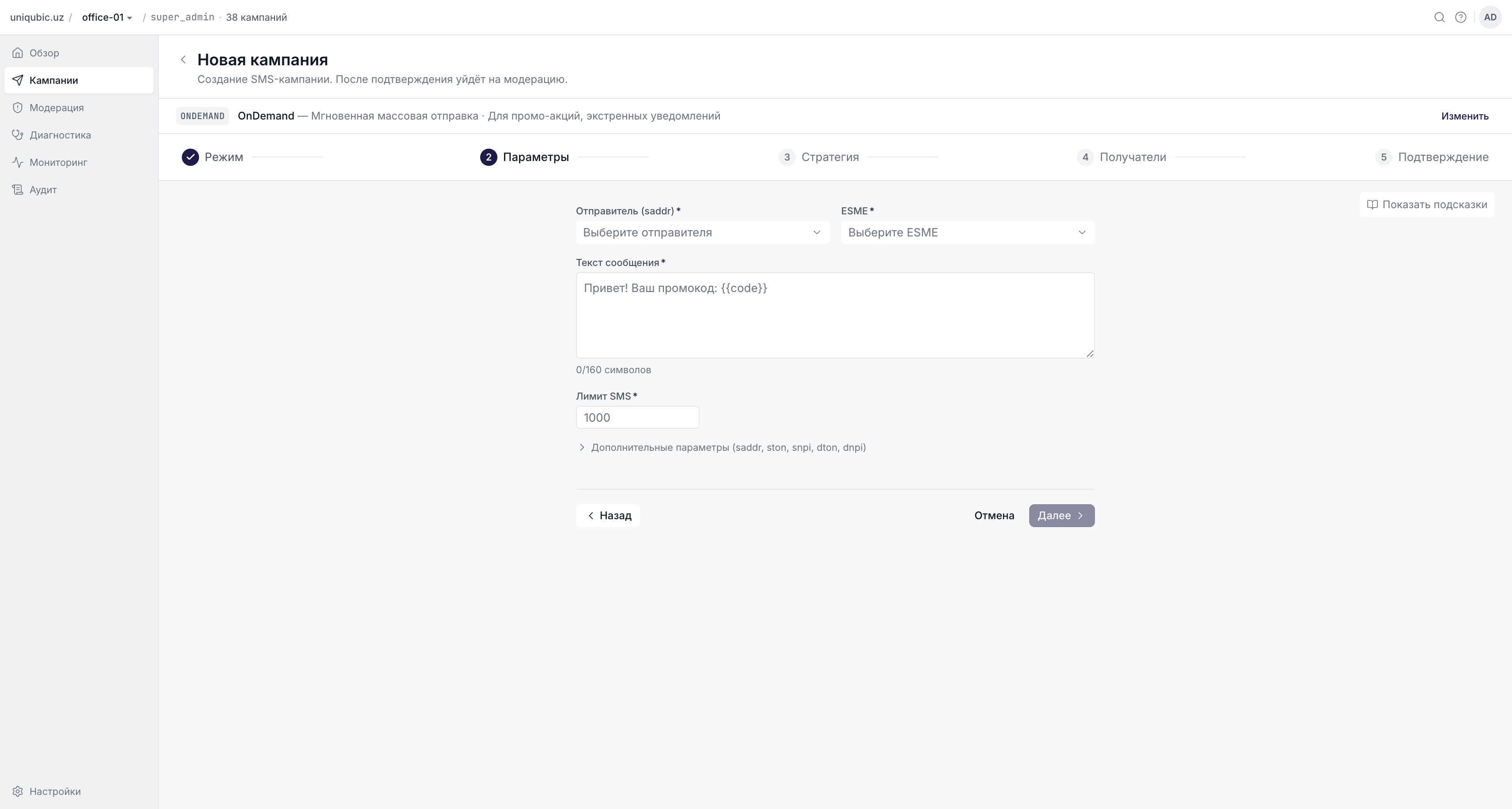
Configure the message content and delivery settings.
Sender (saddr)
Select from the dropdown which sender name to use. The dropdown shows:
- Workspace senders — sender names with an approved revision in this workspace. The SMPP parameters (ston, snpi, dton, dnpi) are pre-filled from the revision and locked.
- Global presets — system-wide saddr presets configured by your administrator.
If neither list has what you need, contact your admin.
ESME (Channel)
Select the ESME rate-limiter (SMS gateway channel) to use. Each ESME has a configured RPS (requests per second) limit. If you switch the ESME after choosing a strategy, the strategy list resets.
Message Text
Enter the SMS text. Standard SMS is 160 characters — a counter shows your current length. Messages longer than 160 characters will be split into multiple parts by the carrier.
SMS Limit
The maximum number of messages that can be sent per day for this campaign. This is a safety cap. Leave it blank if you have no daily limit in mind — the system will use a default of 1,000,000,000.
Date Fields (OnTime / Spread / Trigger)
| Mode | Required fields |
|---|---|
| OnTime | Start date — when the campaign will fire |
| Spread | Start date and End date — the window over which messages are distributed |
| Trigger | Start date and End date — the active window during which trigger signals are accepted |
IgnoreDailyWindow (Trigger only)
Core enforces a quiet-hours window by default to avoid messaging recipients at night. Enable this toggle to bypass the window for time-sensitive OTP or alerts. Use with care.
Advanced Parameters
Expand the Advanced parameters section to view or override the SMPP protocol fields: saddr, ston, snpi, dton, dnpi. These are auto-populated from the selected sender — only change them if instructed by technical support.
Step 3 — Strategy
Select one or more strategy presets from the list. Strategies define routing rules (which route, at what priority, at what speed). If only one strategy is available, it will be pre-selected.
The combined strategy value is shown at the bottom: e.g. default or highpriority,fallback.
If no strategies appear, ask your administrator to configure them under Settings → Proxy → Strategies.
Step 4 — Recipients
Skipped for Trigger mode. Trigger campaigns receive recipients via API signals after the campaign is approved and started.
Upload a .txt or .csv file with one phone number per line in international format (e.g. 998901234567). After uploading, the UI shows the detected line count — verify it matches your list.
You can also enter numbers manually in the text area below the dropzone: one number per line, or separated by commas.
File size limits:
- Client-side upload cap: 50 MB (enforced by the browser)
- Server-side cap: 1 GB (for direct API callers)
You can upload multiple files. Each file is uploaded separately and the total count is shown. If a file fails to upload, remove it and try again before proceeding.
Step 5 — Confirm
Review all settings before submitting. You can click Edit on any section to go back and change it.
Auto-start after moderation
Toggle this option if you want the campaign to start automatically as soon as a moderator approves it (according to the scheduled mode and time). If off, the campaign waits in status New (Approved) until you manually start it from the campaign list or detail page.
Submitting
Click Create Campaign. The campaign is created with status New and enters the moderation queue. You will be redirected to the campaigns list after a short countdown.
If the button is disabled and shows "Unavailable: core API is not responding", the core service is down. Wait and retry — no data has been lost.
After Submission
| What happens | When |
|---|---|
| Campaign appears in Moderation queue | Immediately |
| Campaign is invisible in the main Campaigns list | Until approved |
Moderator accepts → status becomes pending / building | After approval |
Moderator rejects → status becomes cancelled | After rejection |
Next Steps
- Managing Campaigns — track your campaign after it's approved
- Moderation — understand the moderation process
- Sender Names & Revisions — set up sender names