Key Features
Key Features
This page is a short map of what an operator actually sees and does in Message Center. Each block links deeper — to Core Concepts for the data model, to the user guide for step-by-step instructions, and to Compliance & Security for the technical details on protection.
Multi-Tenancy and Access
Isolated Workspaces
Each organization, department, or client is given its own workspace. Campaigns, sender names, members, and audit logs are partitioned by workspace_id — users in workspace A cannot see or affect data in workspace B. A single Message Center installation comfortably serves dozens of tenants at once. Super administrators have a cross-workspace view for oversight without breaking tenant isolation.
More: Core Concepts.
Four Roles and a Moderator Flag
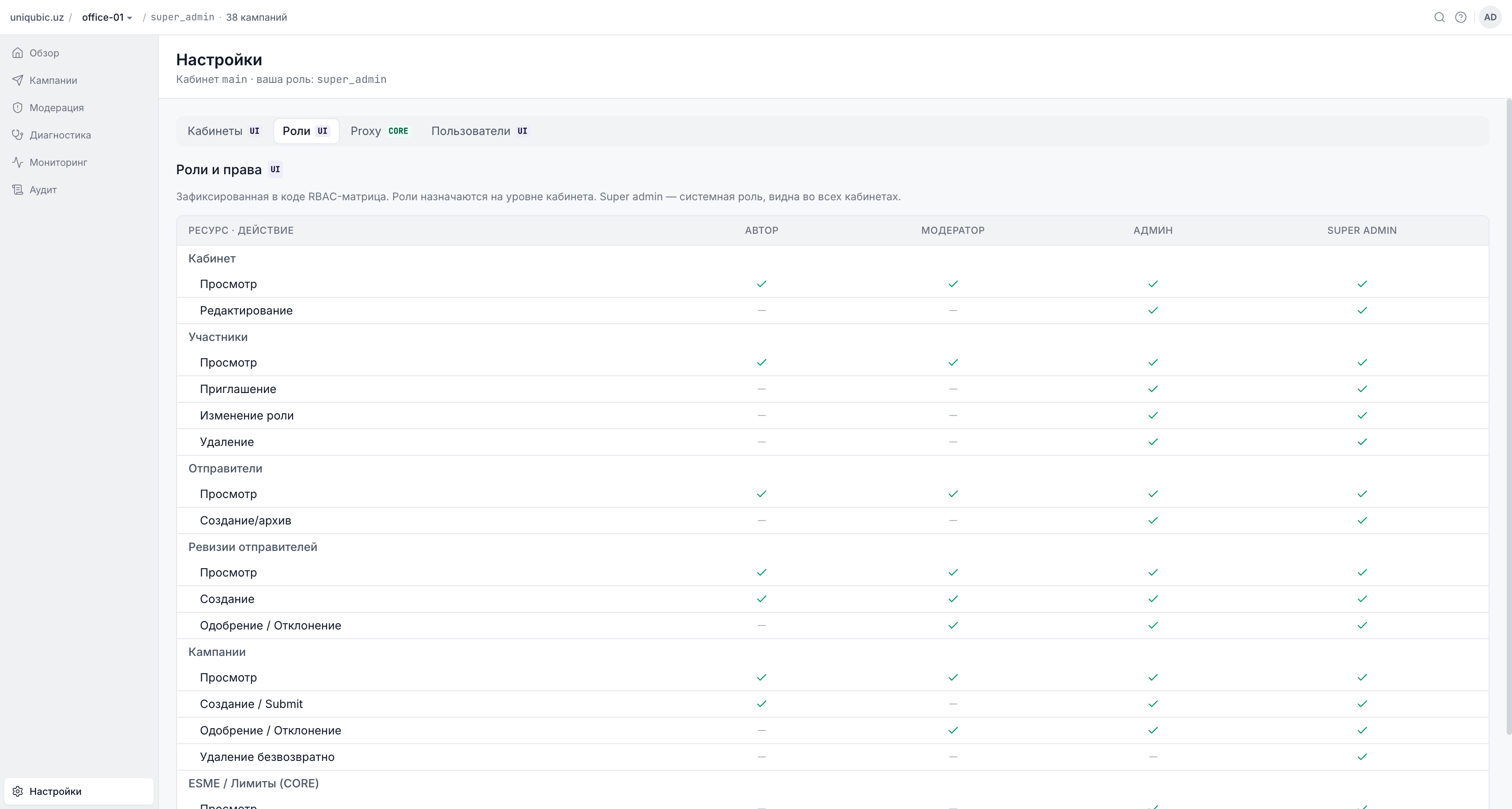
| Role | What they do |
|---|---|
| Author | Create and manage their own campaigns; view sender names |
| Moderator | Approve or reject campaigns and sender-name revisions |
| Admin | Full workspace management, including member roles |
| Super Admin | All workspaces, system configuration, the Master workspace |
In workspaces that need flexible review coverage, an Author can be granted an is_moderator flag — they gain approve/reject rights while staying in the Author role. This is useful when full Moderator role would be too much.
Full RBAC matrix: Roles and Permissions.
Invitations and Self-Service Join
An Admin invites members by email; the invitation is a separate object that can be revoked until accepted. In parallel, a self-service flow lets a user request to join a workspace, which an Admin then approves or rejects.
More: Settings and Members.
Brute-Force Lockout
After three or more failed login attempts, the account is locked for one minute. This stops basic credential-stuffing without flooding the help desk.
Campaign Management
Four Delivery Modes
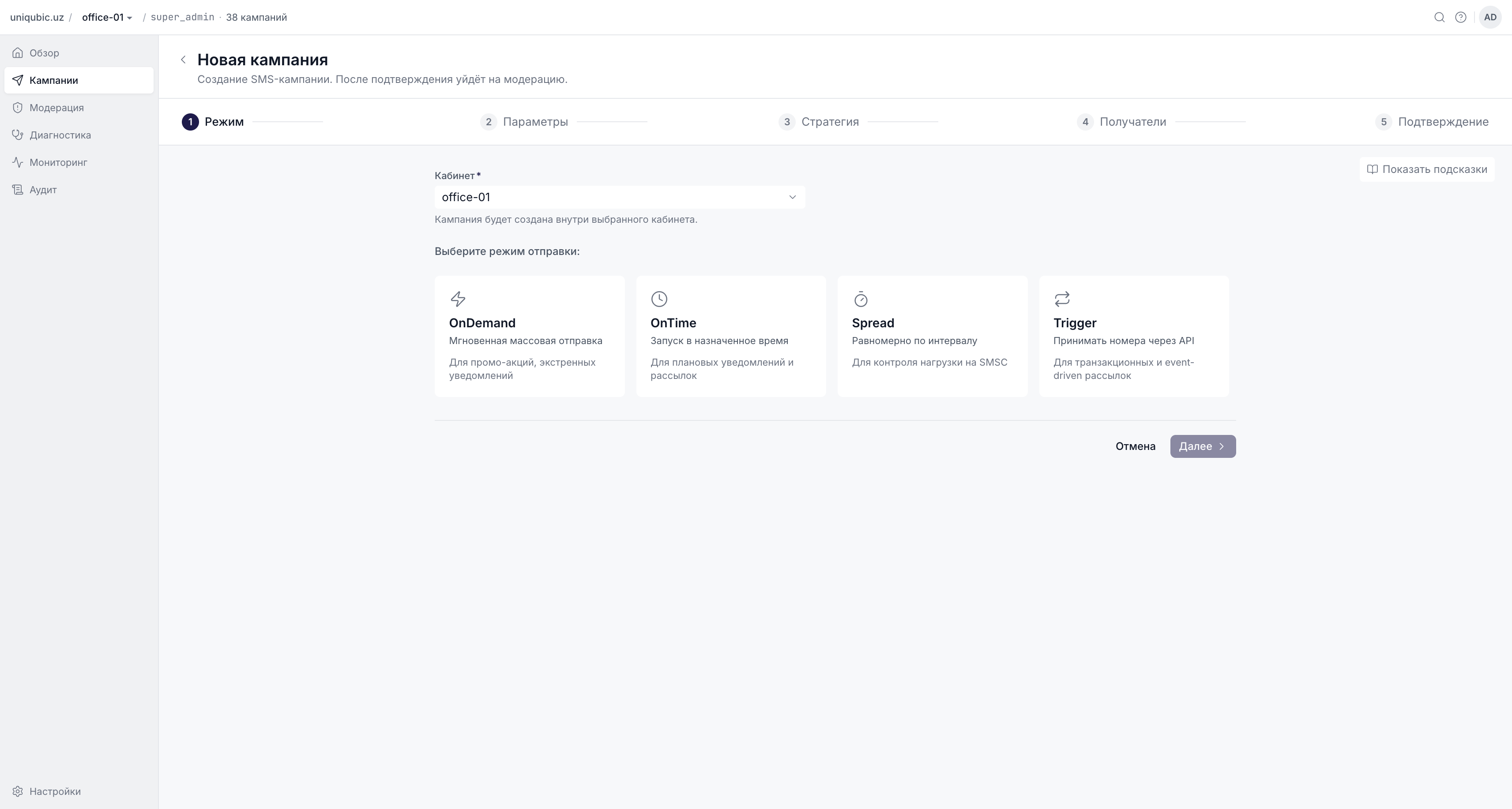
| Mode | Description |
|---|---|
| OnDemand | Send immediately after moderator approval |
| OnTime | Send at a specific date and time |
| Spread | Distribute evenly across days within a window; one message per recipient |
| Trigger | Empty campaign that accepts numbers via API after the start |
In Trigger mode, a separate IgnoreDailyWindow toggle lets the campaign bypass the workspace's quiet hours — meant for urgent OTPs that must be delivered regardless of the time of day.
Five-Step Wizard
Campaign creation is a five-step wizard: pick mode, set core parameters, override SMPP fields (saddr, ston, snpi, dton, dnpi), upload recipients, and review before submitting to the moderation queue. The parameters step lets you set a daily SMS limit per campaign and toggle auto-start after approval.
Full walkthrough: Creating a Campaign.
Streaming Uploads up to 1 GB
Recipient lists are accepted as .csv or .txt files — up to 50 MB through the UI and up to 1 GB via server-side upload. The whole path — browser to Message Center to SMS Core — is streamed without buffering in memory. A 1 GB file with 10 million numbers consumes the same heap as a 1 KB file.
Filters, Sorting, and Two Kinds of Errors
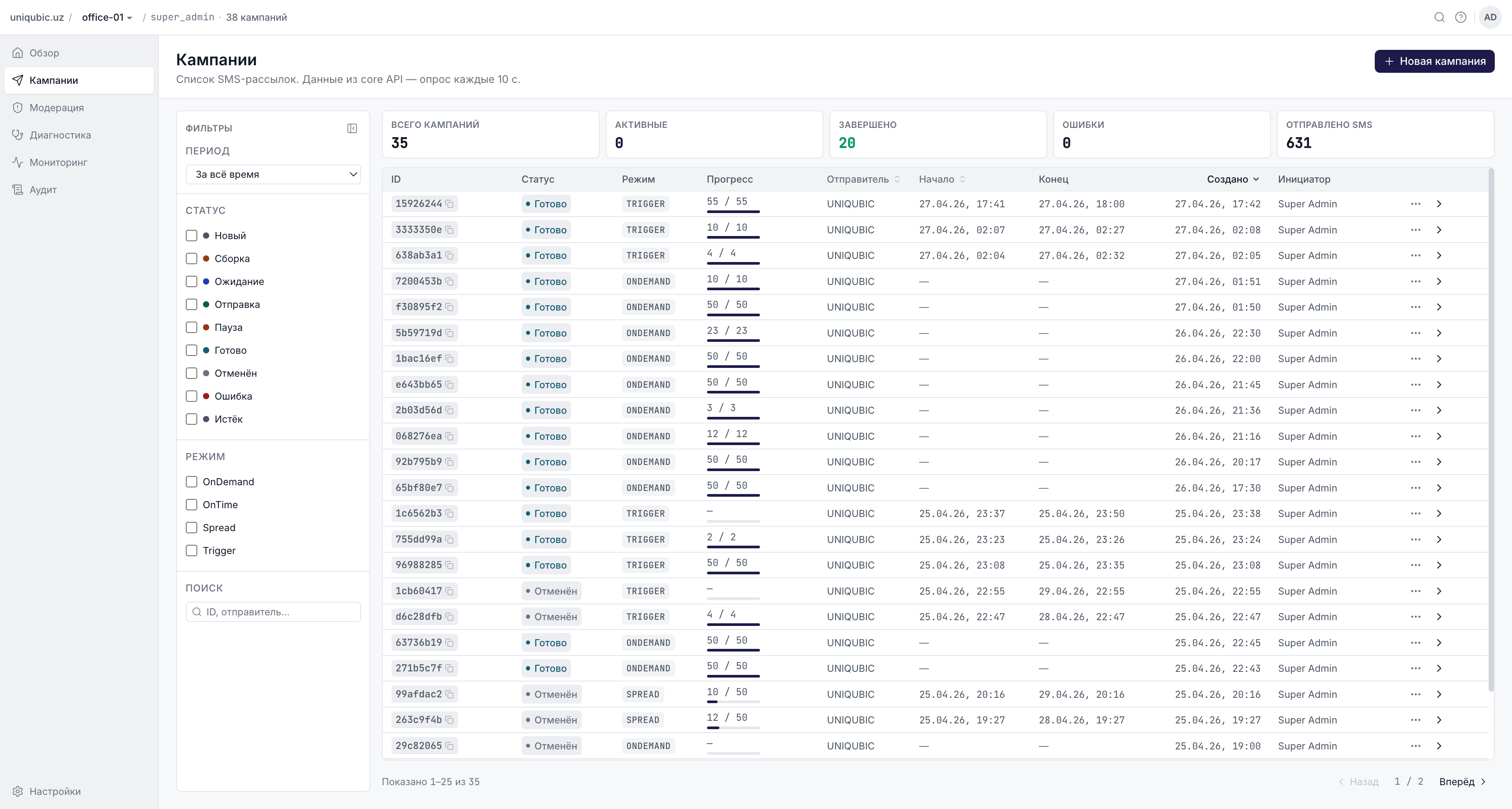
The campaigns list supports filtering by period, status, mode, and search by ID or sender name; the Sender, Start, and Created columns are sortable. On a campaign's detail page, errors are split into two tabs: Job errors (workflow and parsing failures) and Message errors (delivery rejections). This split matters because the same SMPP code means different things in the two contexts — confusing them during incident triage will mislead you.
Recipient Storage and UI Masking
Recipient phone numbers are stored in the Message Center database — you cannot send a campaign or pre-generate Spread-mode rows (where the platform decides up front who gets messaged on which day) without persisting them. At the same time, the UI masks numbers for everyday use: the recipients list is displayed via a SHA-256 hash (ctn_hash); the full number is visible only to roles that have explicit access, with everyone else seeing only trailing digits. This shuts down "shoulder-surfing" when several operators share a screen, without breaking sending itself.
Export and Archive
From the campaign detail you can export delivery records as CSV or TXT — the job is queued, the file is delivered when ready, and it is automatically removed after expiry.
Campaign archiving is implemented as an archived_at flag, not as a data migration: the record stays in the same workspace_id and just disappears from the main list. Only terminal statuses can be archived (New, Done, Cancelled, Failed, Expired); a campaign in Building/Pending/Sending/Paused cannot. Restore has two modes: one click if the original author is still active, or a workspace-picker dialog if the author is gone.
More: Archive and Restore.
Moderation and Sender-Name Registry
Mandatory Moderation Queue
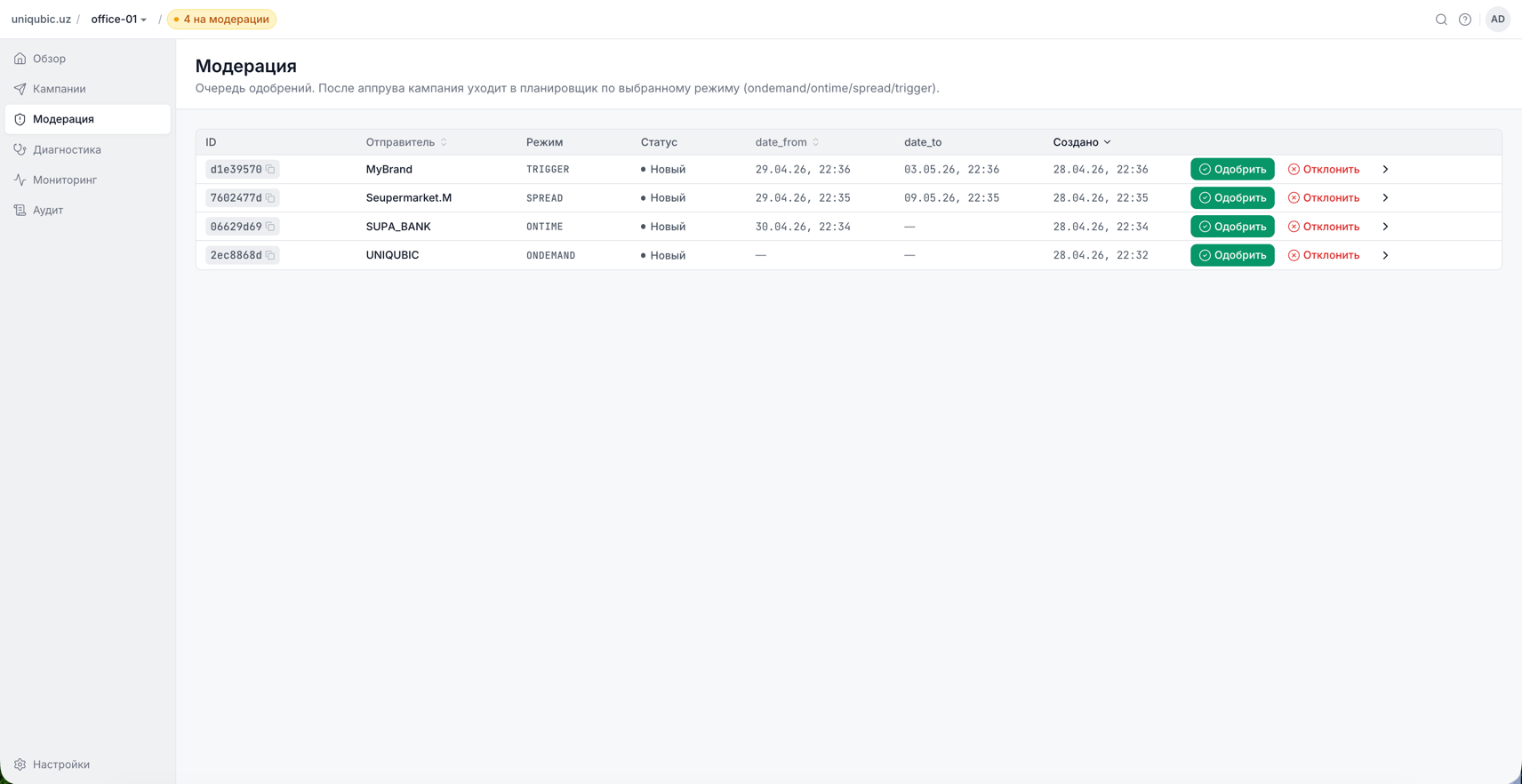
No campaign is dispatched to the SMS Gateway without an explicit decision. Right after creation, every campaign lands in the moderation queue, where a Moderator, Admin, or an Author with the is_moderator flag either approves or rejects it. This guards against accidental sends, enforces compliance review, and adds a point of human accountability for regulated industries.
The queue polls the server every few seconds: if another moderator has already acted on an item, it disappears from your view before you click. Double approvals do not happen.
The queue has two tabs: Campaigns (pending approvals) and Sender Revisions (new or changed sender names). When rejecting, a moderator leaves a note — it later shows up for the author in the Audit tab on the campaign card, which removes most "why did you reject this?" chats.
Immutable Sender-Name Revisions
Sender names (what the recipient sees) are kept as versioned records. Any SADDR change creates a new revision in Pending Approval — it does not edit an existing record. Once approved, a revision is immutable: you always know exactly which SADDR string was used for any campaign at any point in time.
The revision lifecycle is Draft → Pending Approval → Approved or Rejected → Archived. Archiving a sender name hides it from the campaign wizard but does not interrupt running campaigns.
More: Sender Names and Revisions.
Visibility and Monitoring
The Overview Dashboard with Live Pulse
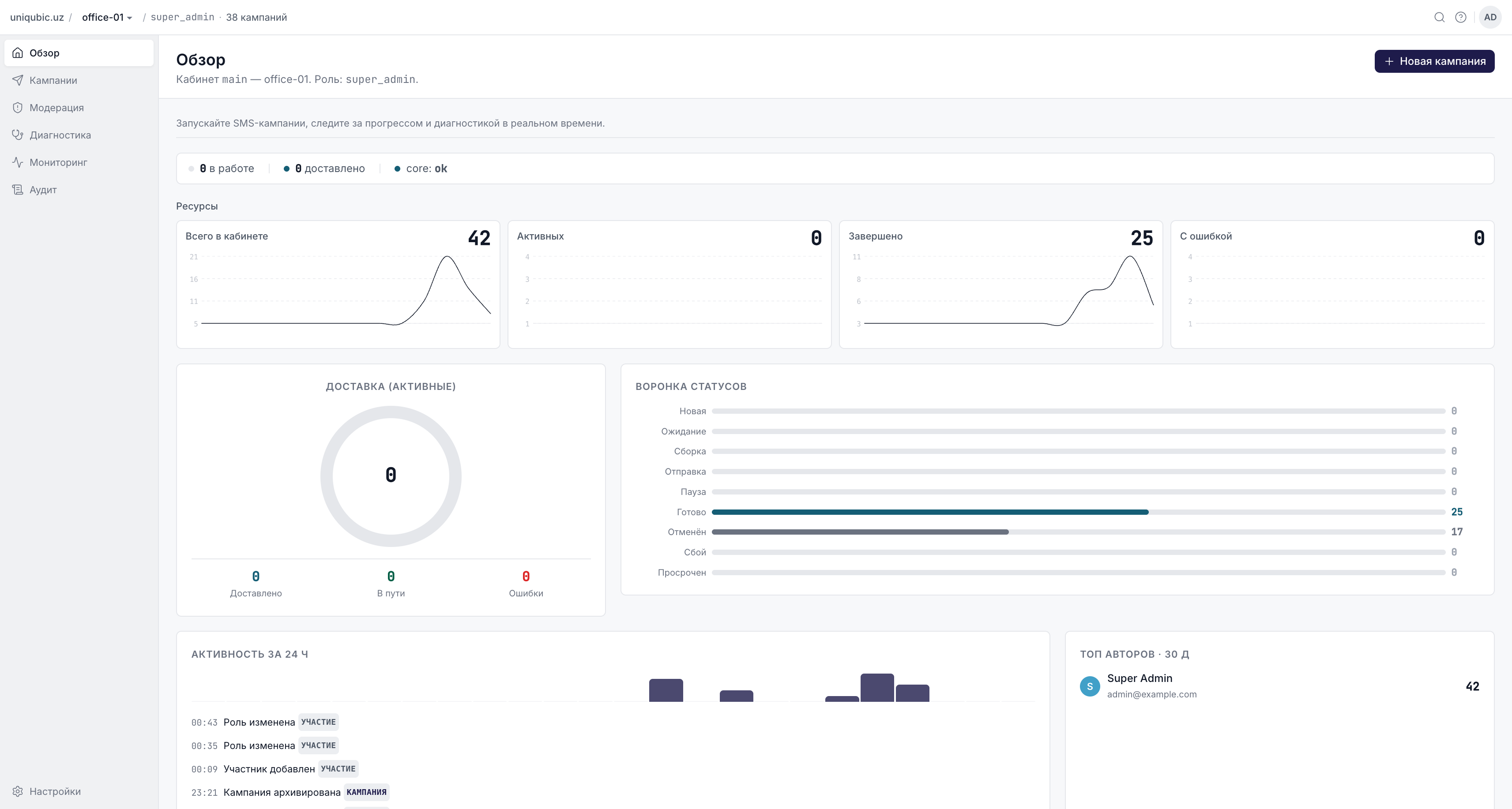
The workspace home screen gives the operator one screen with:
- KPI tiles — total / active / completed / failed campaigns;
- Live Pulse — in-flight messages, current delivery rate, Core API status in real time;
- a ring chart of delivery distribution (Delivered / In flight / Errors) across active campaigns;
- a status funnel — how many campaigns sit in each lifecycle state;
- a 24-hour activity chart — sent vs failed SMS per hour, useful for spotting load spikes;
- Top Authors — who in the workspace was most active over the last 30 days.
Embedded Grafana
Pre-built Grafana dashboards are embedded directly into the Message Center monitoring tab — no separate browser tab. Operators see throughput per ESME channel, queue depth, latency, and error trends. Access is limited to Admin and Super Admin.
Diagnostics and Log Sentinels
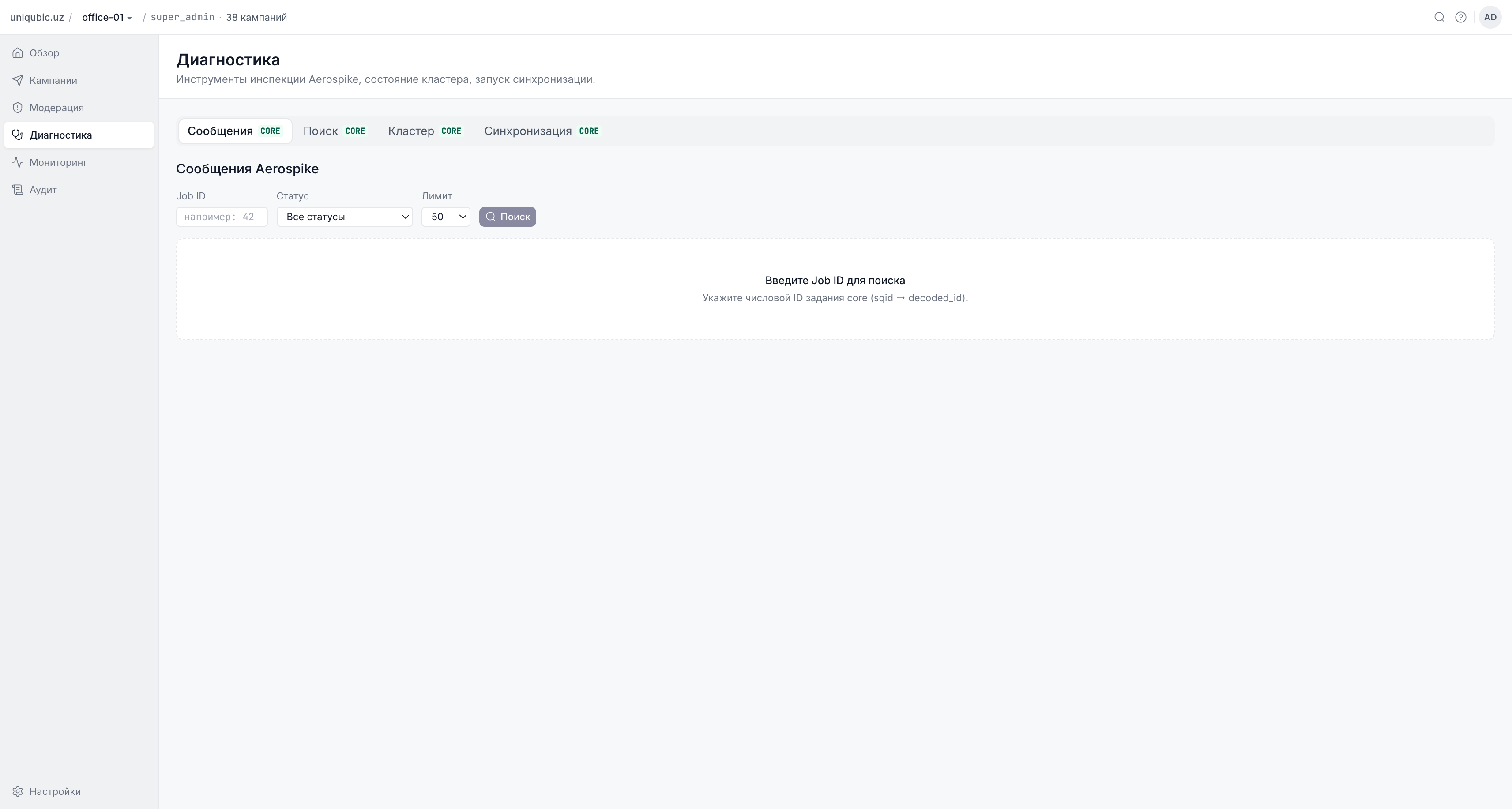
The Diagnostics page collects technical health signals: Core API status, DB schema version (must match between admin and core), audit retention (90 days by default), and audit fallback file size. In addition, four sentinels in the core-admin logs make it easy to wire alerts:
[core-slow]— a Core API request took longer than five seconds;[core-large]— a Core API response exceeded eight megabytes;[audit-fallback]— audit events are being written to a file instead of MongoDB (the DB is unreachable);[audit-fallback-overflow]— the fallback file passed 200 MB, new events are dropped silently (this is a critical signal — your monitoring should alert immediately).
Details and the pre-flight checklist for large campaigns: Monitoring and Diagnostics.
Audit and Compliance
Every action in Message Center — campaign creation, approval, rejection, role change, member removal, login — is recorded in the audit log with:
- who performed the action (user, role);
- when (millisecond-precision timestamp);
- what changed (before/after values for key fields);
- from where (IP address, user agent, request ID).
Audit retention is configurable (default 90 days); longer retention is supported for PCI/SOX environments via MongoDB TTL indexes.
Audit resilience. If MongoDB is unavailable, audit events are not lost — they are buffered into a local file with a hard 200 MB cap. When the database returns, the buffer is flushed back into the collection. Crossing the 200 MB cap is a critical condition (see [audit-fallback-overflow] above): new events start being dropped silently, and your monitoring must catch it.
Details on compliance modes and the architectural immutability guarantees: Compliance and Security.
Security and Deployment
mTLS to the Gateway
The link between Message Center and the SMS Gateway is protected by mutual TLS — both sides present client certificates. You cannot intercept service credentials and just submit a campaign past the platform. Certificates can be rotated hot, without restarting any service.
Air-Gapped Deployment
Message Center has no external dependencies beyond MongoDB and the SMS Gateway stack. It runs in air-gapped environments without internet access, which makes it suitable for regulated industries, government deployments, and high-security telco installations.
Technical details (runtime, versions, libraries): Technology Stack. Security configuration (cert rotation, password policy, GDPR mode): Compliance and Security.
Next Steps
- Product Bundles — how to choose your deployment option
- Core Concepts — the mental model: workspaces, roles, campaigns, sender names
- Compliance and Security — security and compliance details
- User Guide — step-by-step scenarios