Getting Started
Getting Started
Message Center is a multi-tenant web platform for managing SMS campaigns. This guide walks you through your first login, workspace selection, and the main navigation.
Signing In
- Open the Message Center URL provided by your administrator (e.g.
https://sms.yourcompany.com). - Enter your Email and Password, then click Sign In.
- If you have too many failed attempts, you will be locked out for one minute — wait and try again.
If your account has been blocked, contact your workspace administrator.
Workspaces
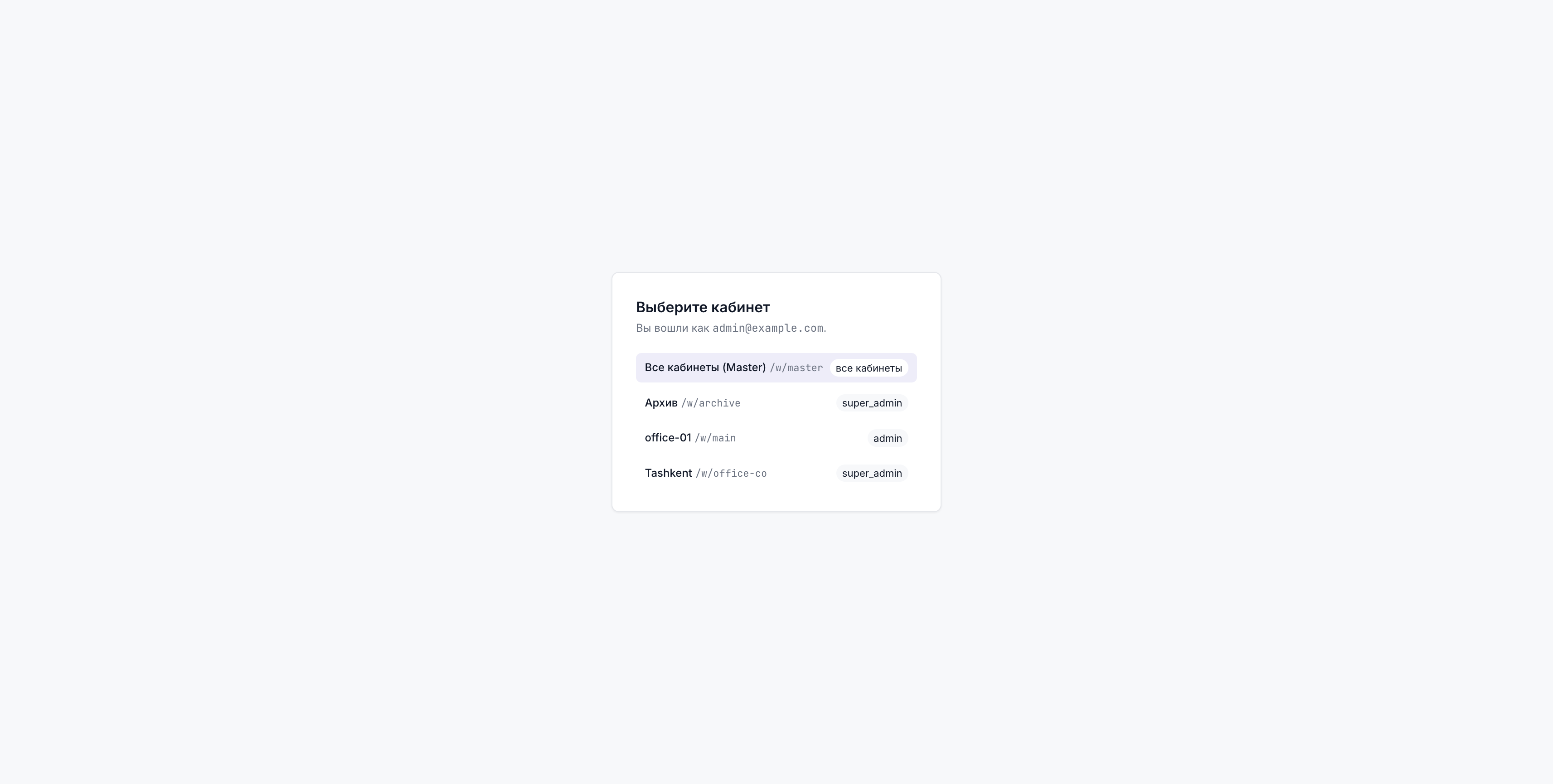
After signing in you land in your default workspace. A workspace (also called a cabinet) is an isolated environment for a team, department, or project. All campaigns, sender names, and audit records are scoped to a workspace — members of one workspace cannot see another workspace's data.
Switching workspaces
The active workspace is shown in the sidebar header. Click the workspace name to open the switcher and select another workspace you belong to.
Special workspaces
| Workspace | Purpose |
|---|---|
| Master | Cross-workspace view for super admins and admins with multi-workspace access. Shows campaigns from all workspaces you manage. |
| Archive | A read-only view of all archived campaigns across your workspaces. |
Main Navigation
The left sidebar contains the main sections of Message Center:
| Section | What it does |
|---|---|
| Overview | KPI tiles, live pulse, delivery donut chart, status funnel, and recent activity |
| Campaigns | List of all campaigns in the workspace (excludes pending moderation by default) |
| Senders | Manage sender names (the display name recipients see) |
| Moderation | Review queue for campaigns and sender name revisions awaiting approval |
| Monitoring | Embedded Grafana dashboard for dispatch and cluster metrics |
| Diagnostics | System health checks — core API status, DB schema version, audit subsystem |
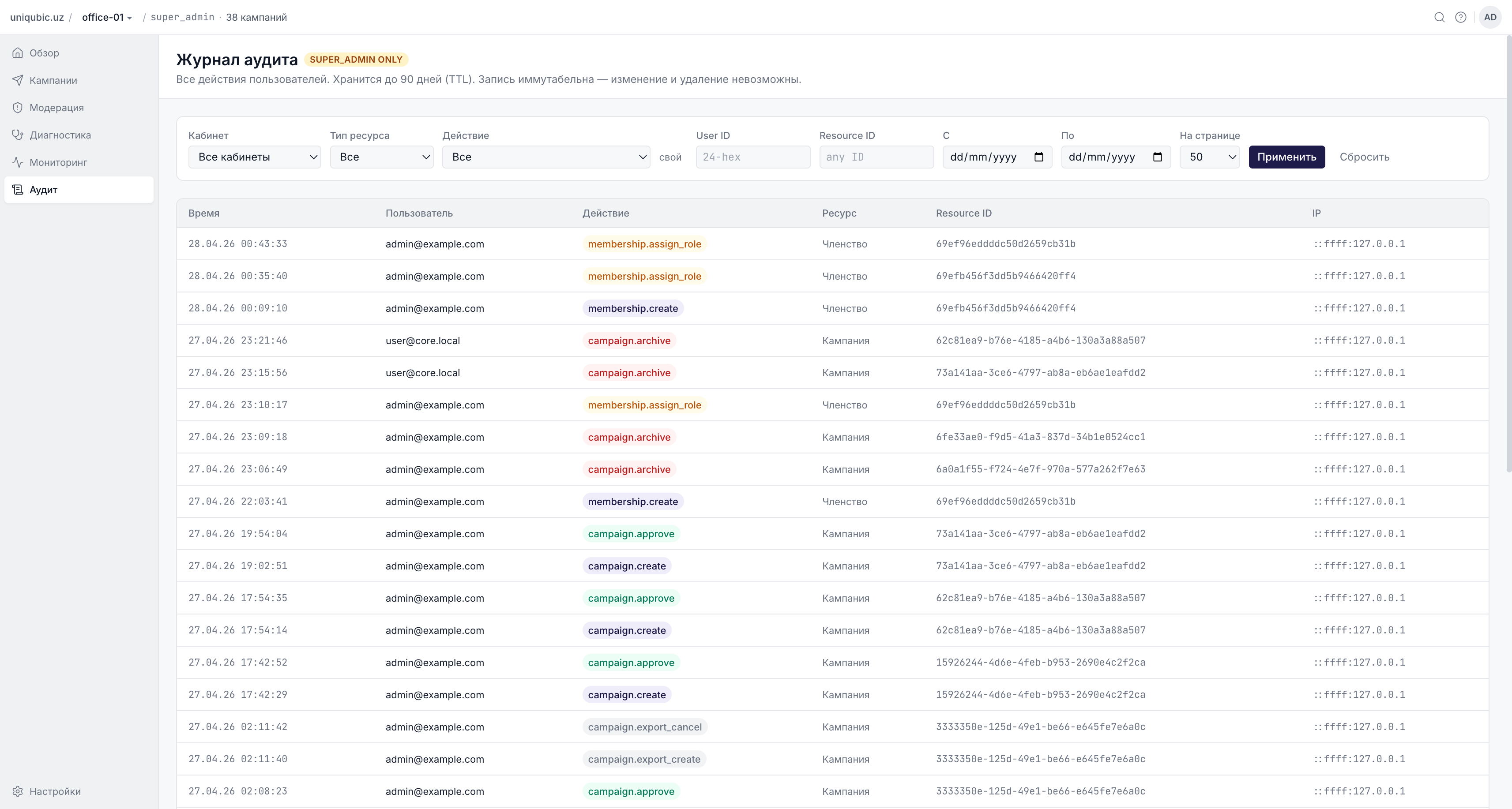
| Audit | Compliance log of all user actions in this workspace |
| Settings | Workspace members, roles, proxy presets, and rate limiters |
Your First Campaign
The quickest path to your first SMS campaign:
- Make sure at least one sender name has been created and approved in Senders.
- Go to Campaigns and click New Campaign (top-right button).
- Follow the 5-step wizard.
- After submission, a moderator must approve the campaign before it starts.
Next Steps
- Overview Dashboard — understand the metrics on your dashboard
- Creating a Campaign — full walkthrough of the campaign wizard
- Roles & Permissions — see what your role allows you to do