Managing Campaigns
Managing Campaigns
The Campaigns page is where you track campaigns after they have been approved and started. Campaigns in the New (pending moderation) state are not shown here — they appear in the Moderation queue.
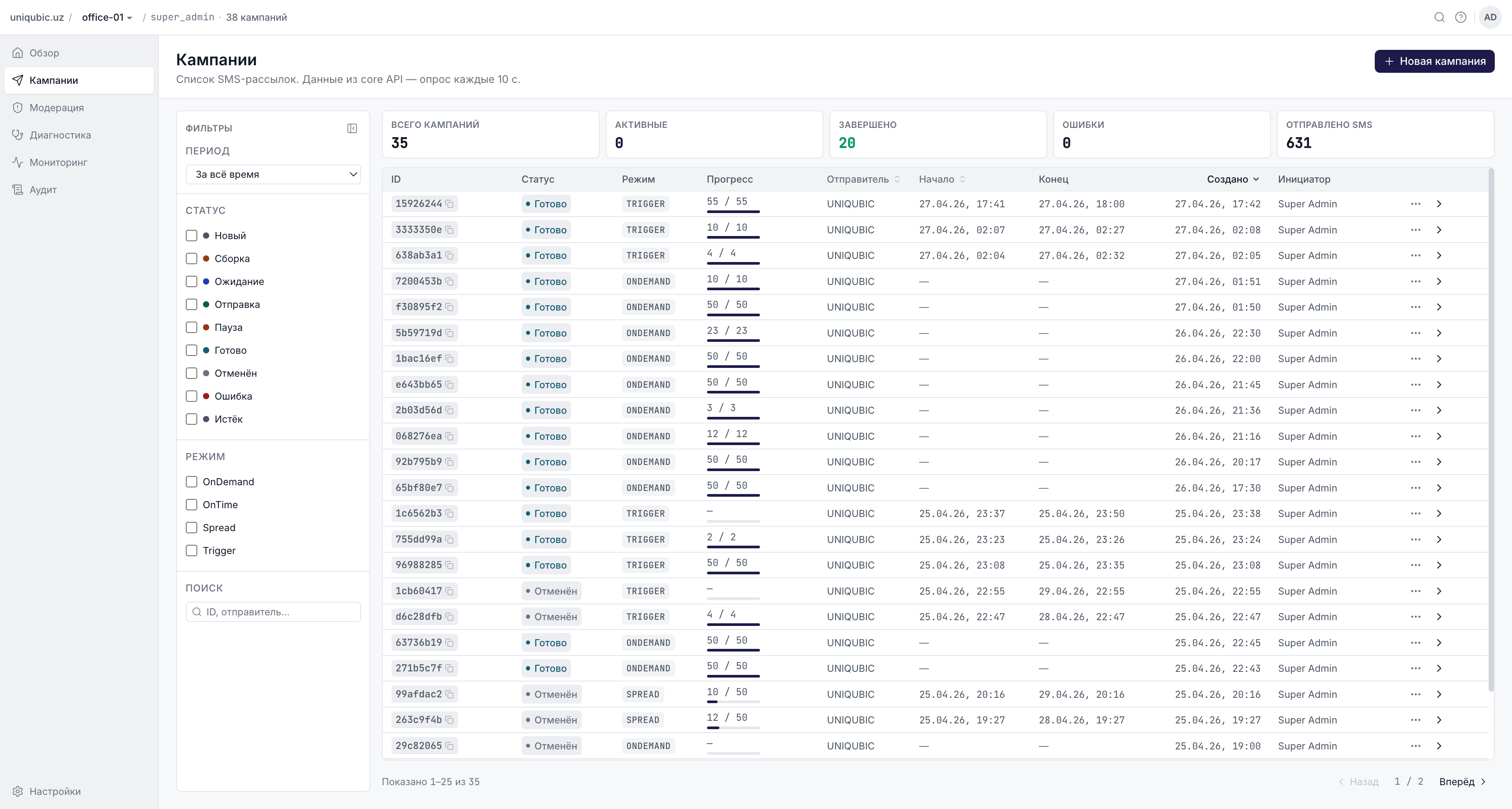
Campaign List
KPI bar
At the top of the list, five tiles give workspace-level statistics:
| Tile | Meaning |
|---|---|
| Total campaigns | All campaigns ever created in this workspace |
| Active | Currently building, pending, sending, or paused |
| Completed | Finished with status Done |
| Errors | Finished with status Failed |
| SMS Sent | Total messages successfully delivered across all campaigns |
Table columns
| Column | What it shows |
|---|---|
| ID | The external_id (UUID) — click to open the detail page |
| Workspace | Visible in the Master workspace view — shows which workspace owns the campaign |
| Status | Current lifecycle status (see table below) |
| Mode | OnDemand, OnTime, Spread, or Trigger |
| Progress | Compact bar showing sent vs total |
| Sender | The saddr name used for this campaign |
| Start | Scheduled start date/time (empty for OnDemand) |
| End | Scheduled end date/time (Spread and Trigger only) |
| Created | When the campaign was submitted |
| Author | Name or email of the user who created it |
Click any row to open the Campaign Detail page.
Campaign Status Lifecycle
New ──(approve)──► Pending ──► Building ──► Sending ──► Done
     ──(reject)──► Cancelled
                                          ──► Paused ──► Sending
                                          ──► Failed
                                          ──► Expired
| Status | Description |
|---|---|
| New | Just created; waiting for moderator approval |
| Building | Core is assembling the recipient list |
| Pending | Waiting for the scheduled start time |
| Sending | Actively dispatching messages |
| Paused | Paused (e.g. outside the daily sending window) |
| Done | All messages processed — campaign complete |
| Cancelled | Rejected by a moderator or manually cancelled |
| Failed | Ended due to a system error |
| Expired | The time window passed before completion |
Statuses Building, Pending, Sending, and Paused show a live animated badge. Terminal statuses (Done, Cancelled, Failed, Expired) show a static badge.
Filters
The left sidebar provides filters that apply instantly without a page reload:
- Period — All time / Last hour / Last 24 h / Last 7 days / Last 30 days
- Status — Multi-select any combination of statuses (with colored dots)
- Mode — OnDemand, OnTime, Spread, Trigger
- Search — Filter by campaign ID (UUID prefix) or sender name
Active filters are shown as chips above the table. Click the × on a chip to remove one filter, or click the red × button to clear all.
Sorting
Click the column headers Sender, Start, or Created to sort by that column. Click again to toggle ascending/descending.
Campaign Actions (list row)
| Action | Appears when | What it does |
|---|---|---|
| Start button | Status is New AND moderation is Approved (auto-start was not enabled) | Manually starts the campaign |
| Archive (⋯ menu) | Status is in New, Done, Cancelled, Failed, or Expired | Moves campaign to the Archive |
Campaign Detail Page
Click any row (or the → chevron) to open the detail page for a campaign. The detail page has five tabs:
Overview tab
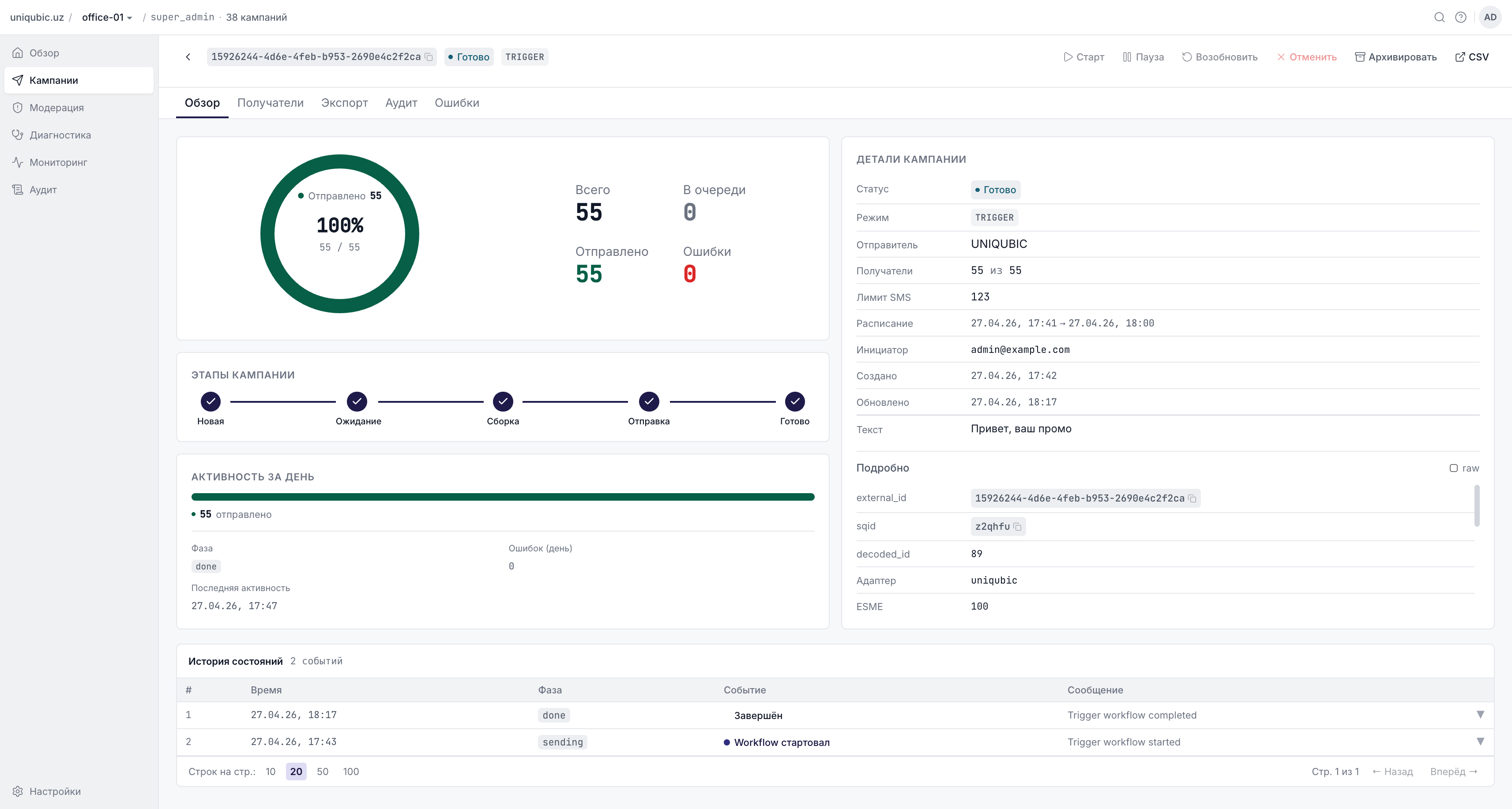
Shows a summary panel with:
- Status, mode, sender, creation time, author
- Delivery progress: sent / total / errors
- Daily activity chart (messages sent per day)
- State history table with workflow lifecycle events (phase, reason, timestamp)
For active campaigns (Sending) this tab updates automatically via polling.
Recipients tab
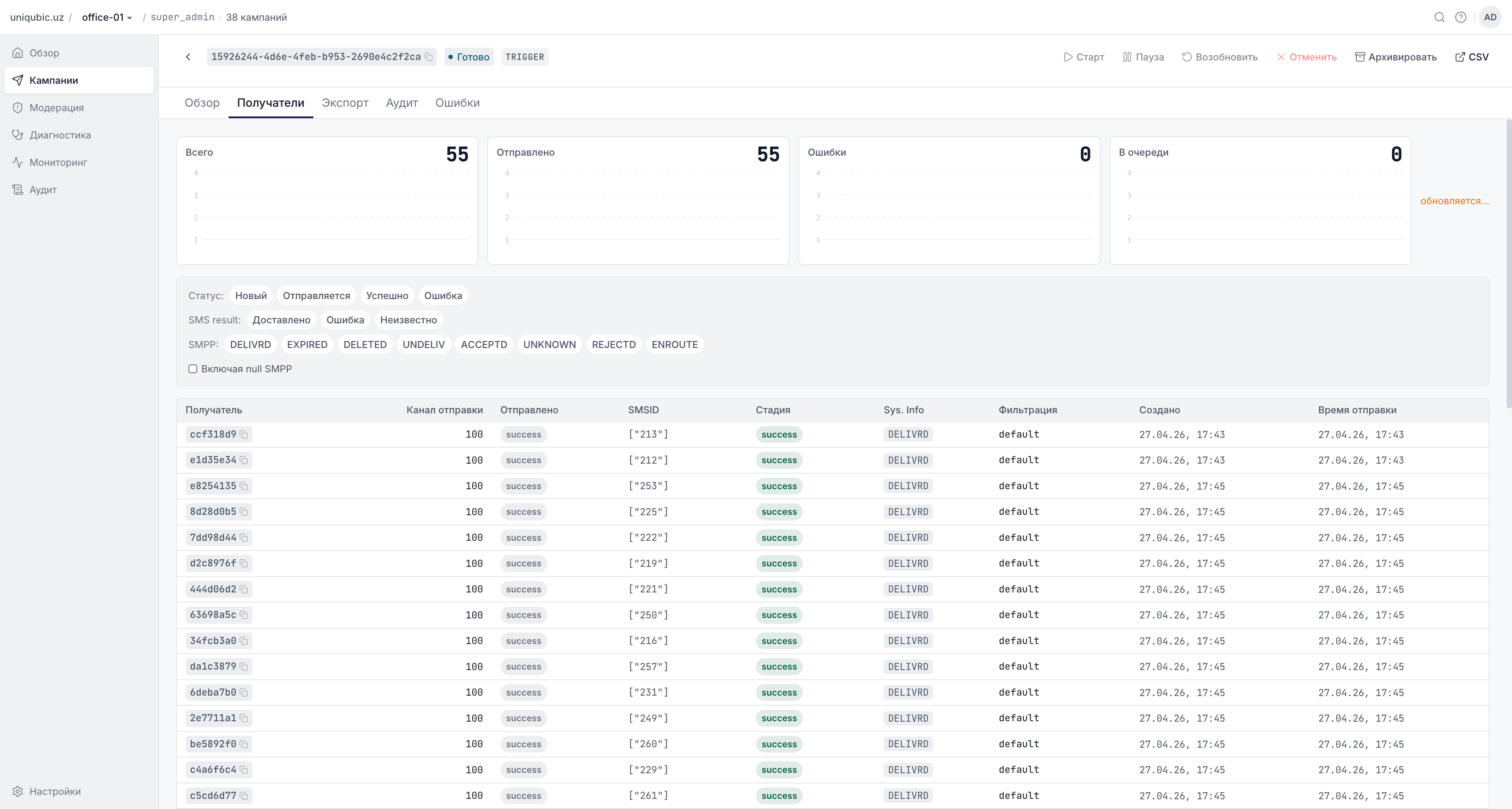
Shows the full recipient list with delivery status. Columns: Recipient, Stage, Channel (ESME), Filter, Delivered, Sys. Info (SMPP result code), SMSID, Created, Sent time, Error.
Filters available:
- Status — New / Sending / Delivered / Failed
- SMS Result — Delivered / Failed / Unknown
- SMPP code — Filter by specific SMPP result (DELIVRD, UNDELIV, EXPIRED, etc.)
- Include null SMPP — Show recipients that have not yet received a delivery report
Phone numbers are shown in partial form (
ctn_hashprivacy) — only the last digits are visible unless your role has explicit access.
Errors tab
Two sub-tabs:
| Sub-tab | What it shows |
|---|---|
| Job | Workflow / infrastructure errors from core (e.g. file parsing failures, retry exhaustion) |
| Messages | Delivery-level errors — recipients where sms_result = 'failed' (carrier rejected or undeliverable) |
The tab badge combines both error types: (job errors) + max(delivery errors).
Do not use Status = Failed to find delivery errors — use SMS Result = Failed instead. A recipient can have Stage = Delivered (SMPP submitted OK) yet SMS Result = Failed (carrier could not deliver). These are distinct states.
Export tab
Export the recipient list as CSV or TXT. Click Create export, choose format, and wait for the export to complete (status: Queued → Running → Done). Then click Download.
Exports expire after a short time — if the download link shows Expired, create a new export.
Audit tab
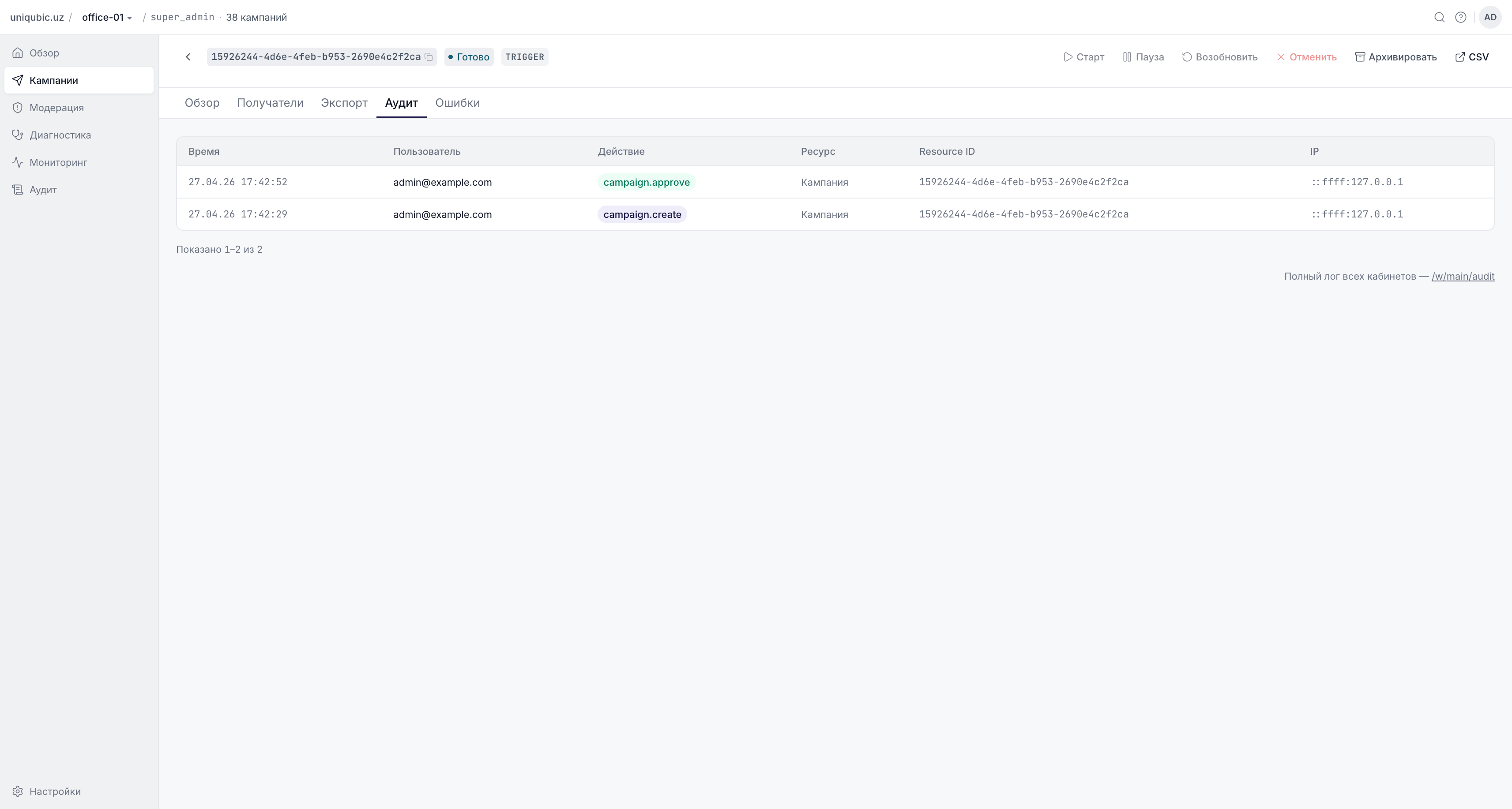
Full audit trail for this specific campaign: who created it, who approved/rejected it, any notes from the moderator, and all subsequent changes. See Glossary for audit action definitions.
Archive
Campaigns with status New, Done, Cancelled, Failed, or Expired can be archived from the list (⋯ menu) or from the detail page action bar.
Archived campaigns are hidden from the main list and accessible only from the Archive workspace. They can be restored.
Next Steps
- Moderation — approve or reject campaigns as a moderator
- Archive & Restore — archive and restore campaigns